
AI coding tools
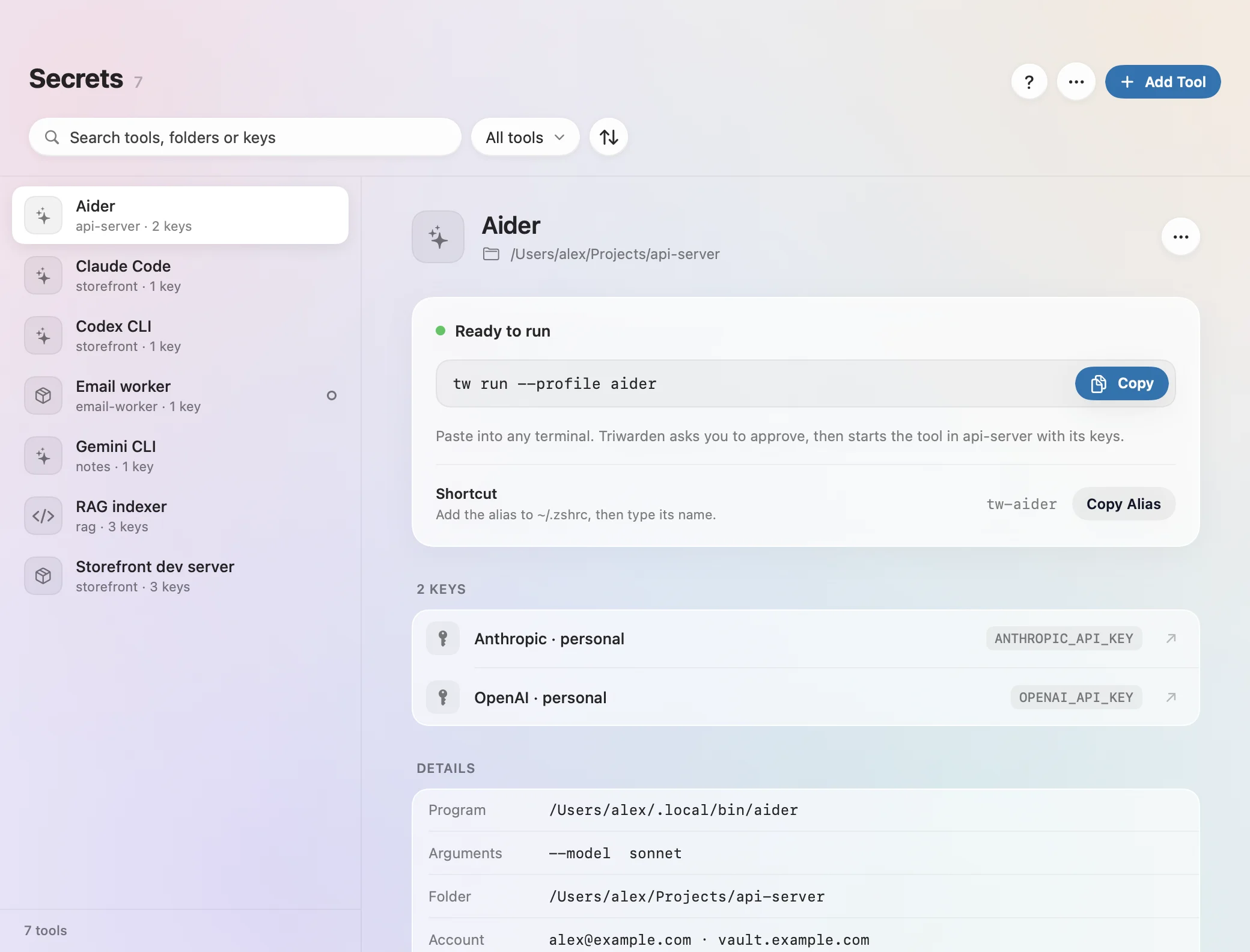
Save one tool each for Claude Code, Codex and Gemini CLI, each with the key and variable it expects. Every tool gets only the keys you chose for it.
Guide · Local API keys
Triwarden keeps API keys in your Vaultwarden or Bitwarden vault and gives them to the tools you set up. Start a tool with tw run or its alias; after you approve, Triwarden starts it with the selected keys as environment variables. Nothing is sent to Triwarden servers.
Set up
In the vault, choose New API Key from the + button or the File menu. Name it, enter the service, paste the key and check the default environment variable, such as ANTHROPIC_API_KEY. It is saved as a standard Secure Note, so other Bitwarden apps can still open and edit it.
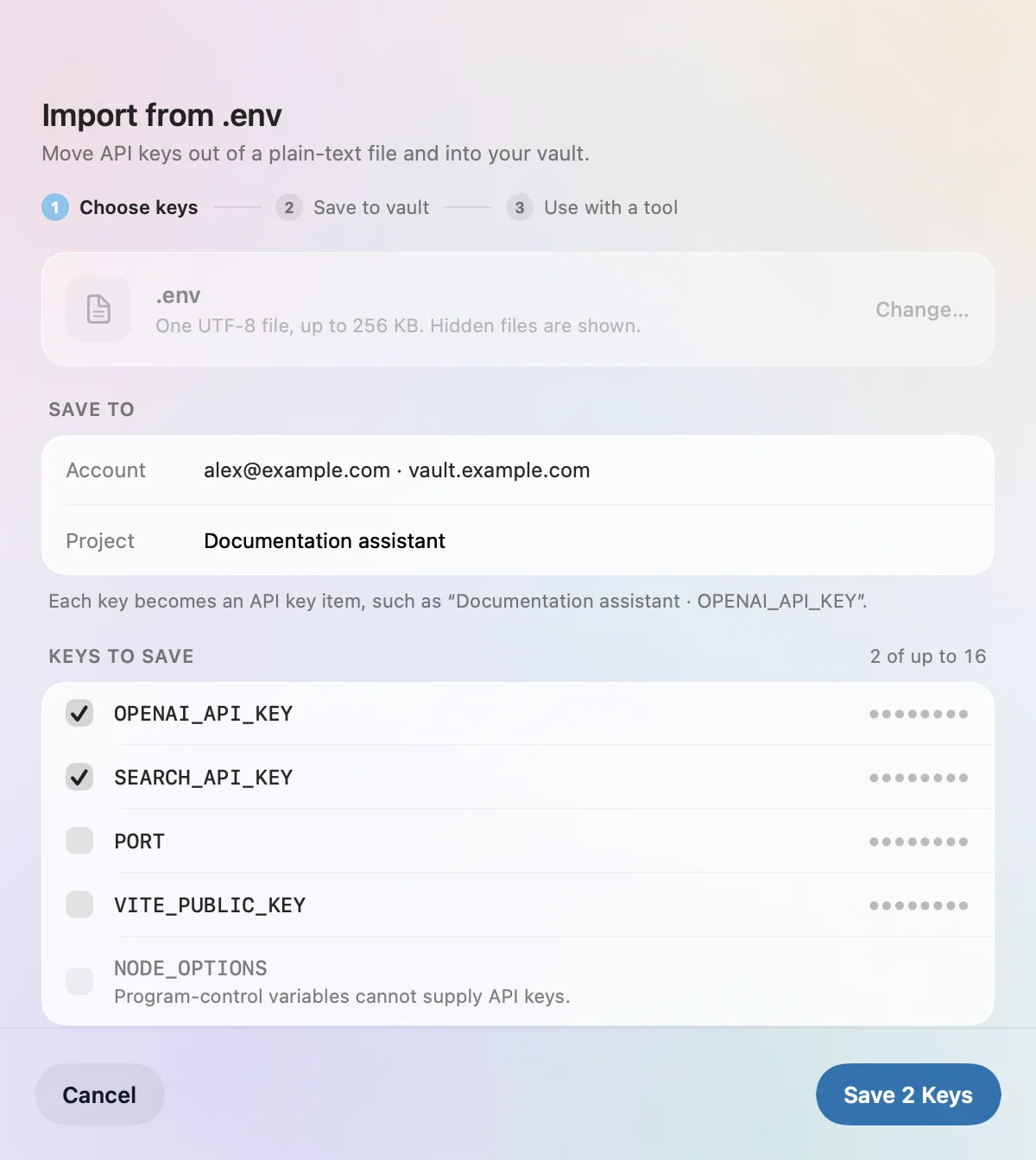
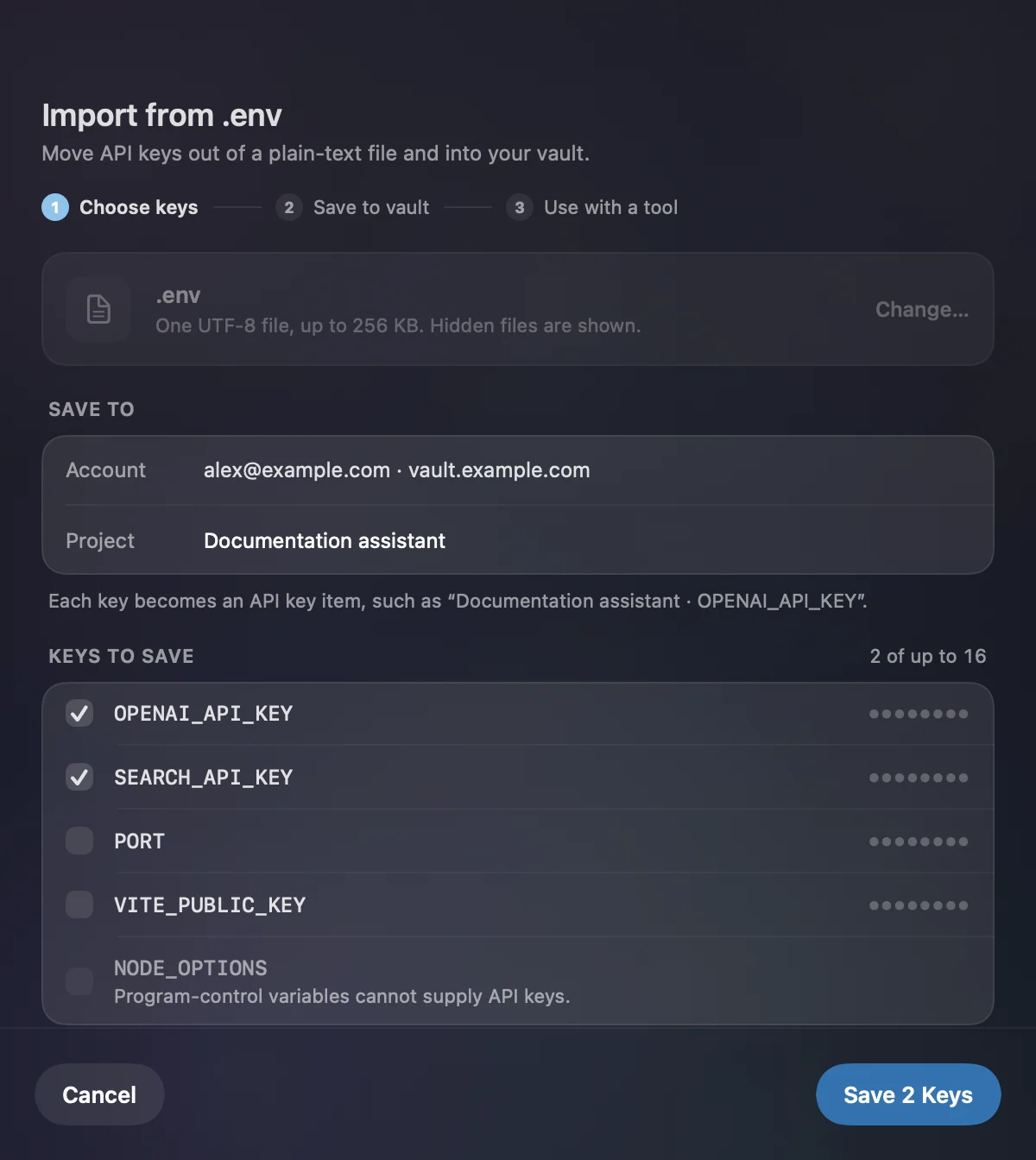
Already have a .env file? Choose Import .env File… and pick the keys to save. Triwarden only reads the file. Once the tool works, delete the plain text copies yourself.
Open the key and choose Provide to Tool…. Pick the tool, such as Claude Code, Codex, Gemini CLI or an npm dev server, and its project folder. Check the variable name the tool reads. Add more keys if it needs them, review the full command, then choose Save Tool.
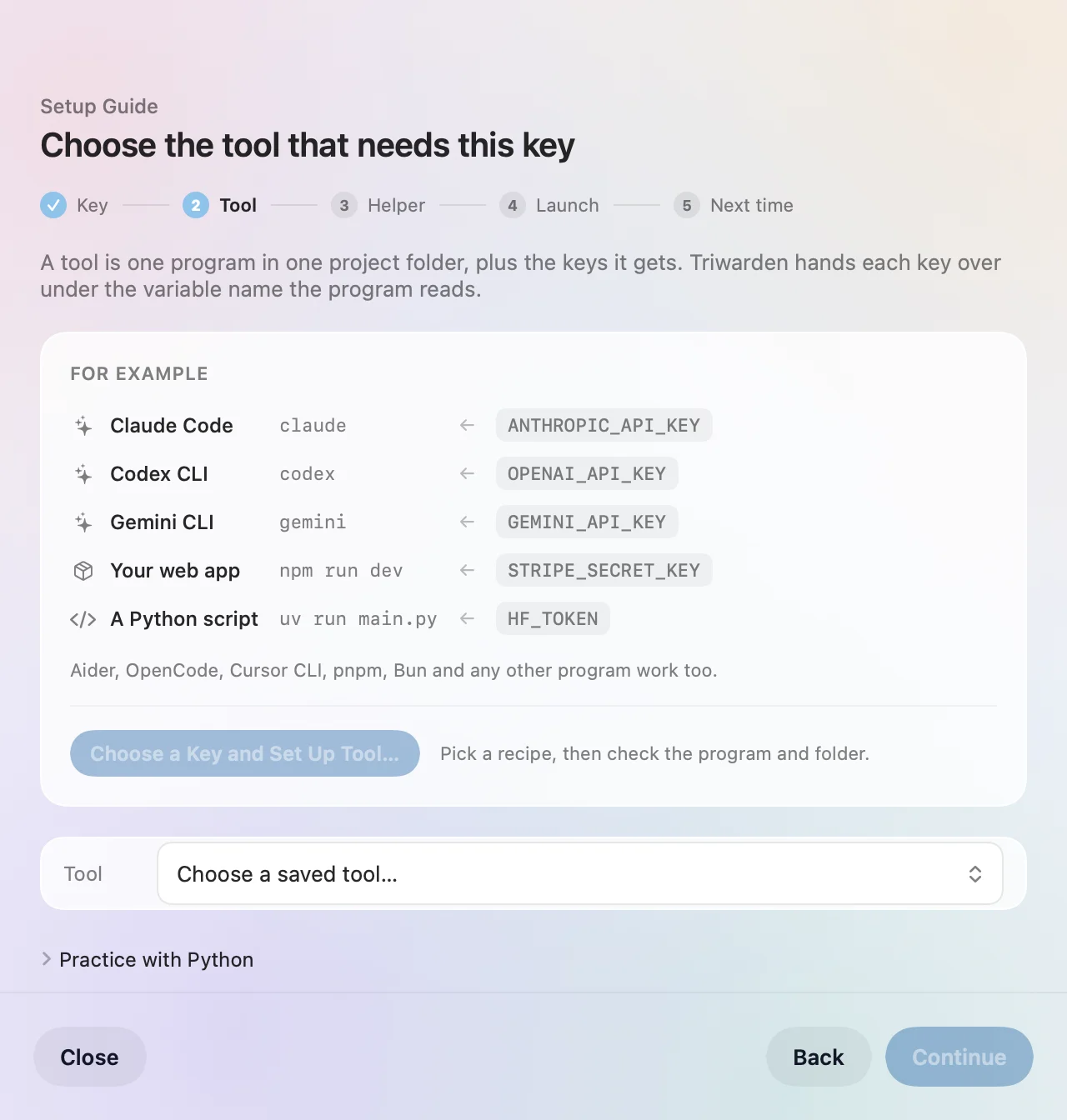
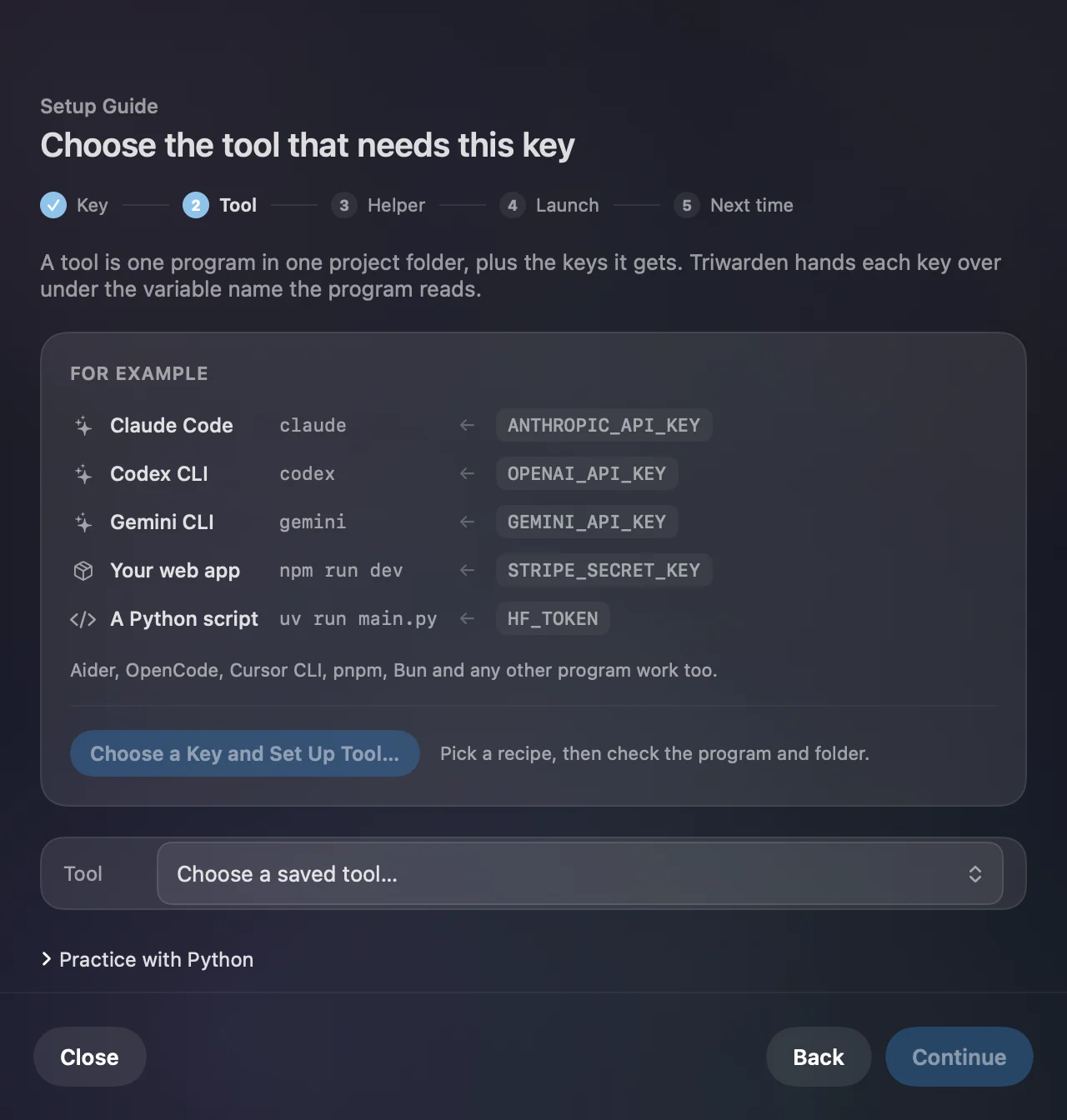
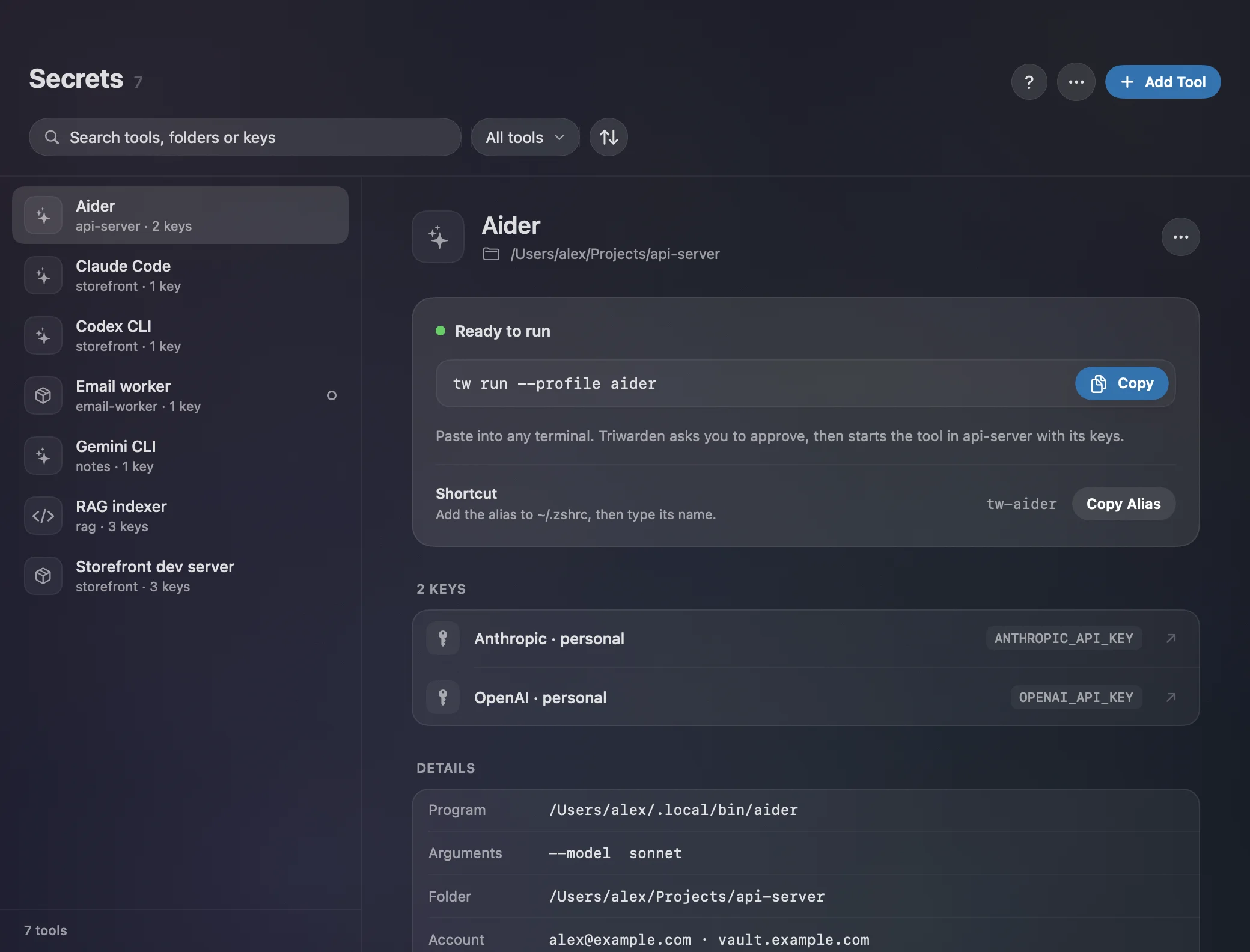
Install the tw helper once from Settings › Developer › Install tw. Secrets lists each saved tool with its launch command. Copy Alias gives you a short name such as tw-claude-code; add that line to ~/.zshrc.
The alias holds the tool's name, never the key.
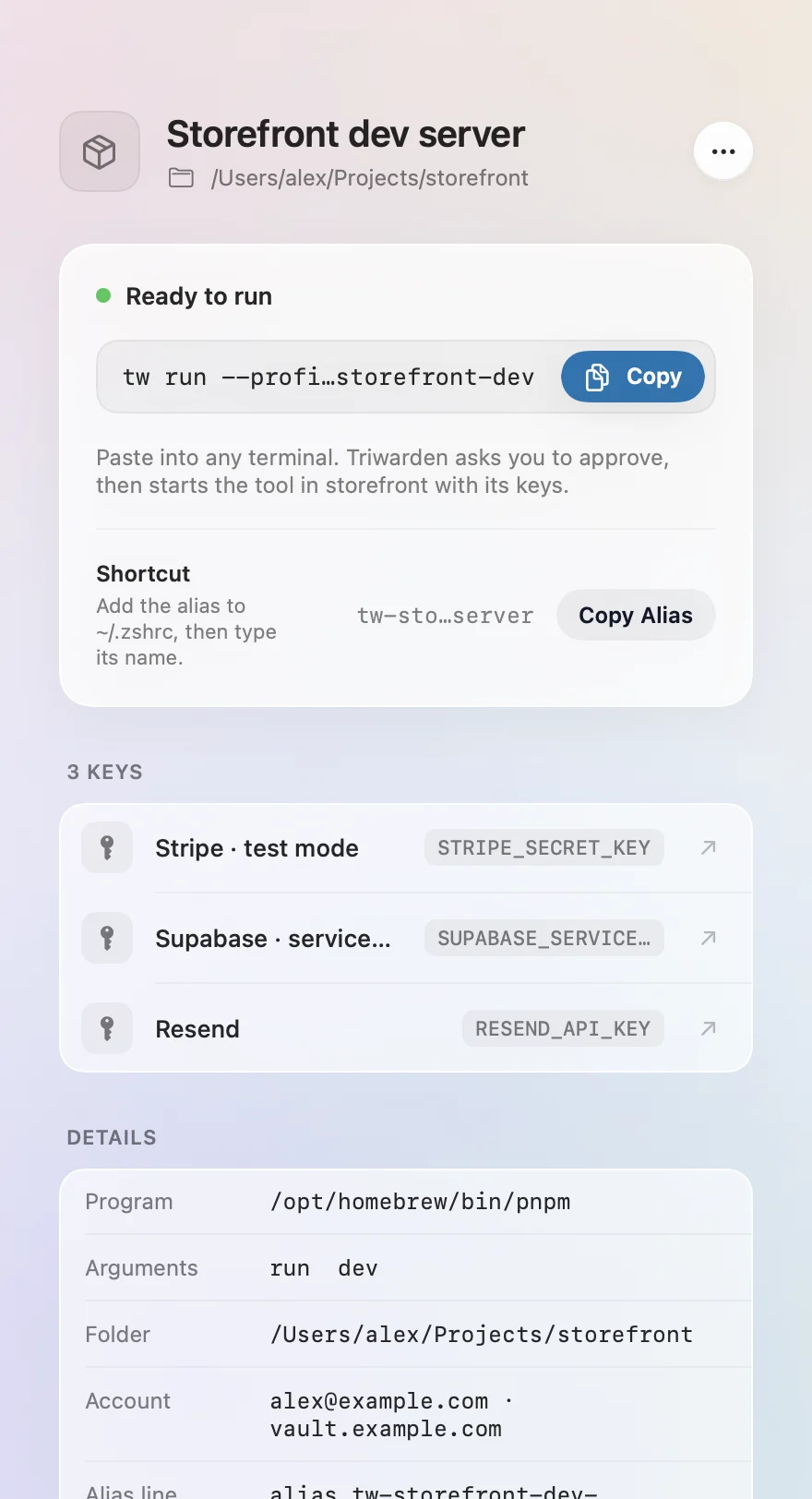
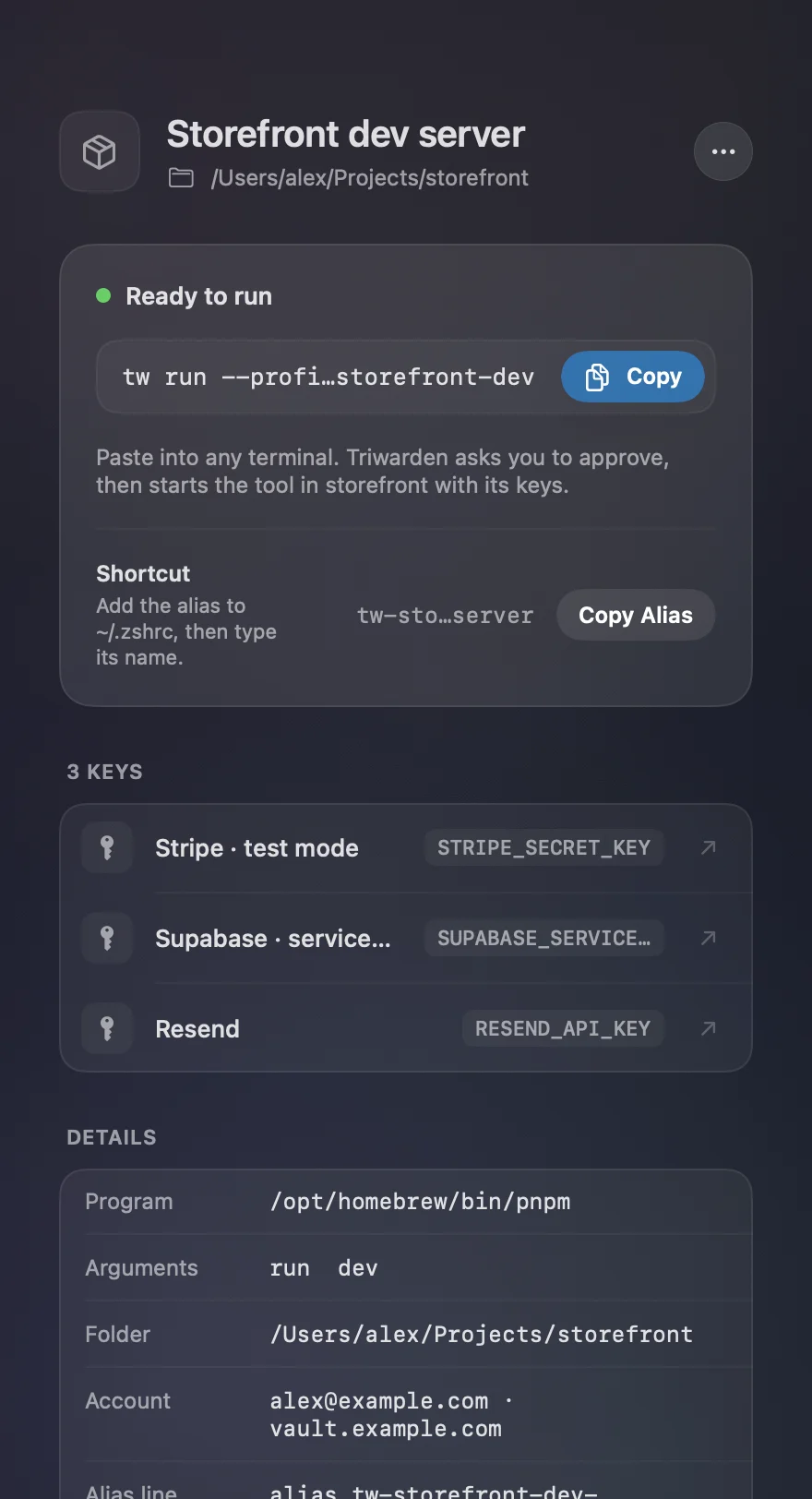
alias tw-claude-code='tw run --profile tool-…'
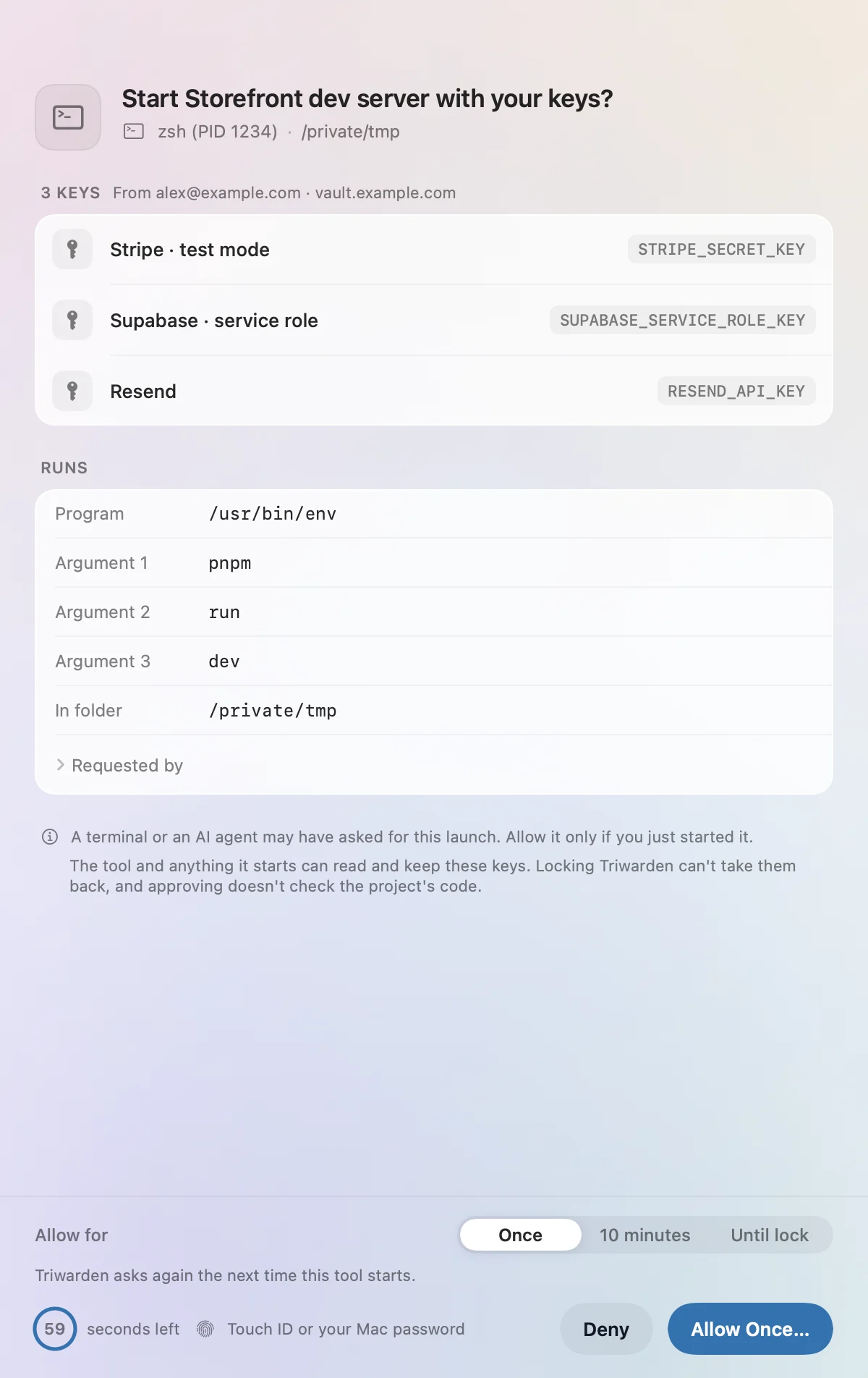
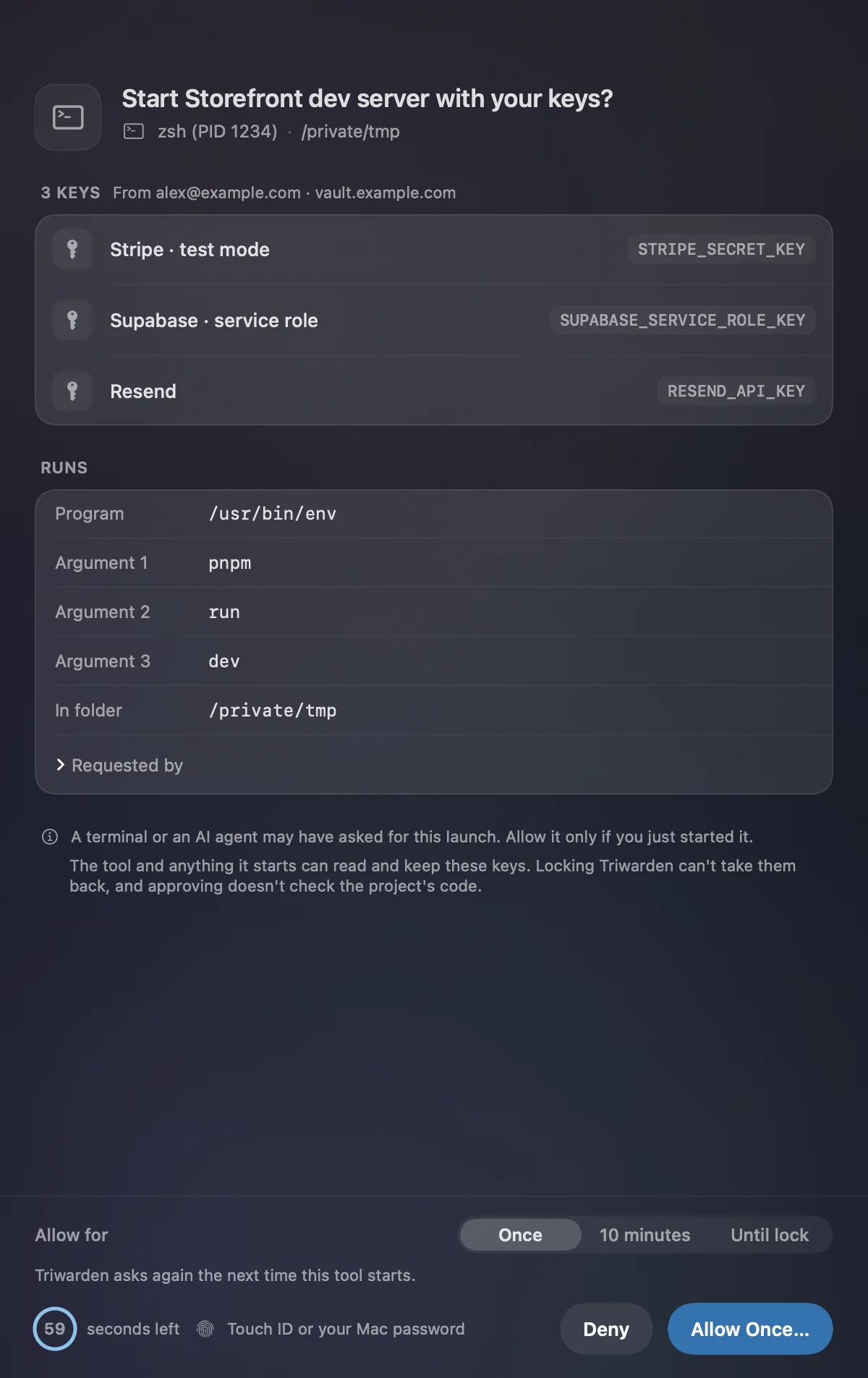
Type the alias. Triwarden shows the tool, command, folder and every key it will receive. Choose Once, 10 minutes or Until lock, then confirm with Touch ID or your Mac password. The tool starts with the keys as environment variables.
tw-claude-code # Triwarden: approve “Claude Code” with Touch ID
Everyday use
Save one tool each for Claude Code, Codex and Gemini CLI, each with the key and variable it expects. Every tool gets only the keys you chose for it.
A dev server that needs several keys gets them together in one launch. Each key can use the variable name that project reads.
tw-storefront-dev-server # Triwarden: approve “Storefront dev server” with Touch ID
Import the keys and check that the tool starts with tw run. Then remove the plain text lines and open a new terminal. If a key ever reached Git or a log, replace it with the provider; moving it into the vault doesn't change the old copy.
Approvals
The approval names the tool and lists the command, folder and every key. Pick how long it lasts:
Temporary access covers the saved command and the launcher process that asked. A new terminal window asks again.
Active access
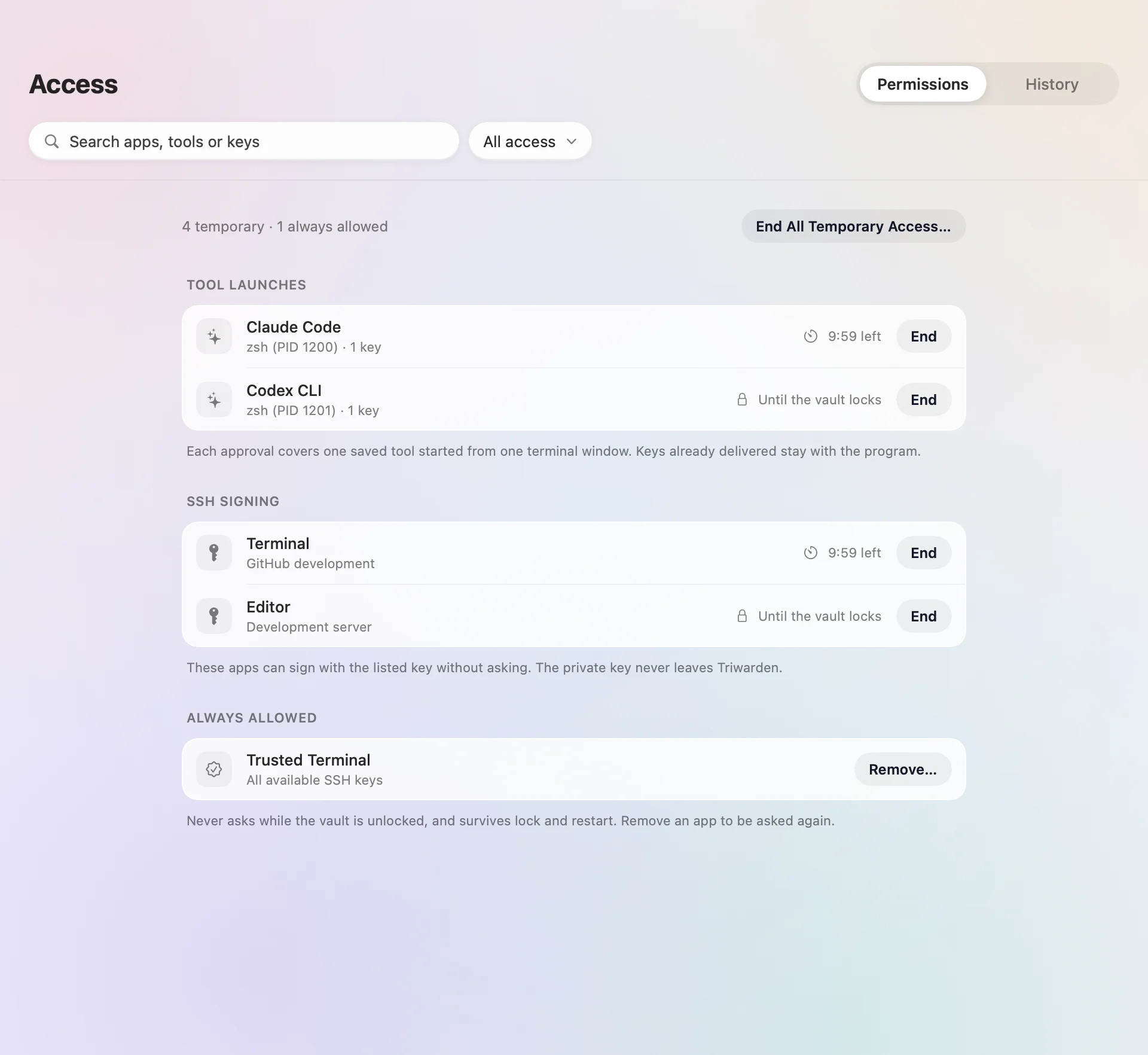
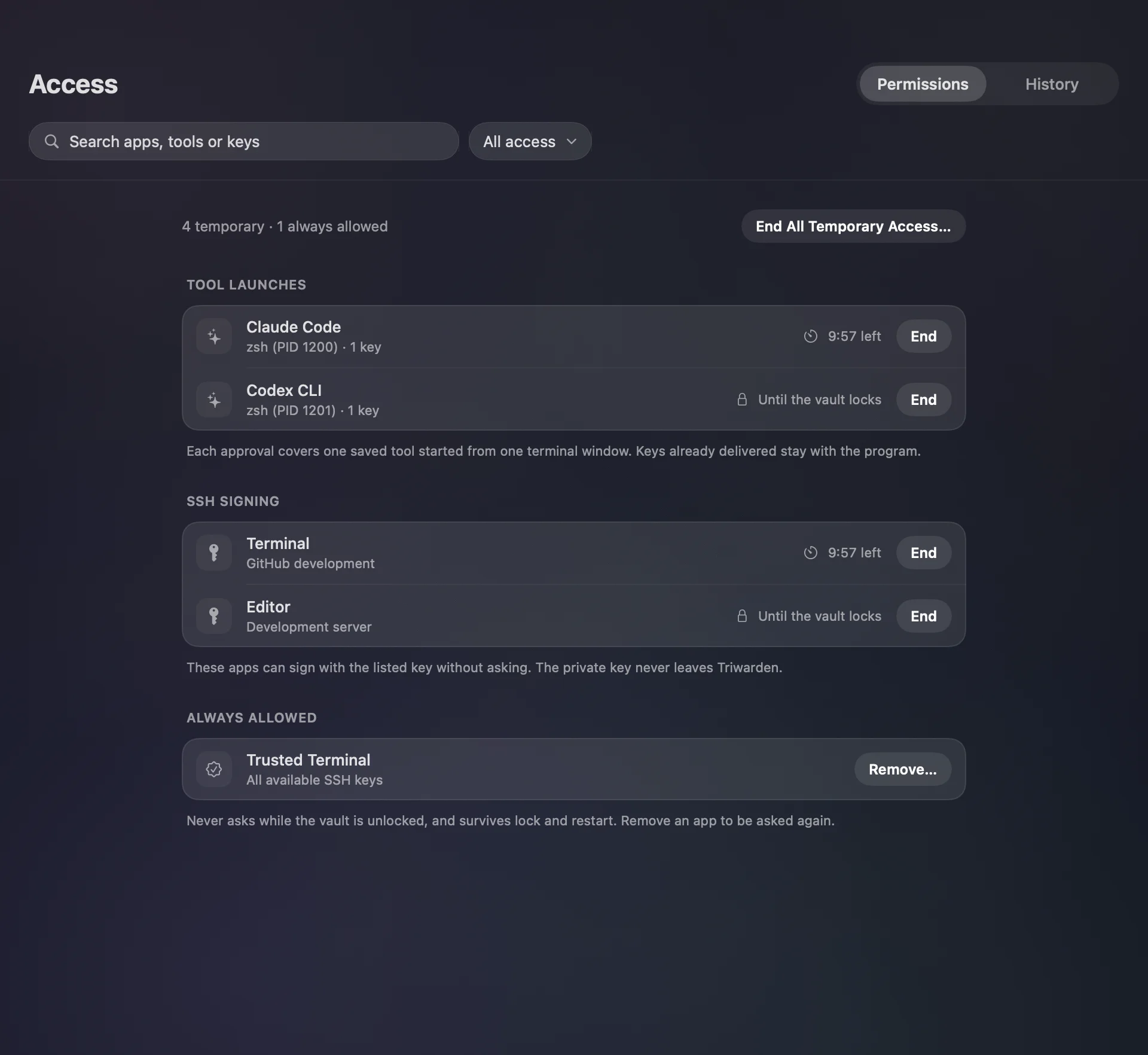
While a tool has temporary access, a small status sits at the notch with the time left on each approval. Point at it to see the list and end one. Access › Permissions in the sidebar lists the same approvals, and you can end any of them there.
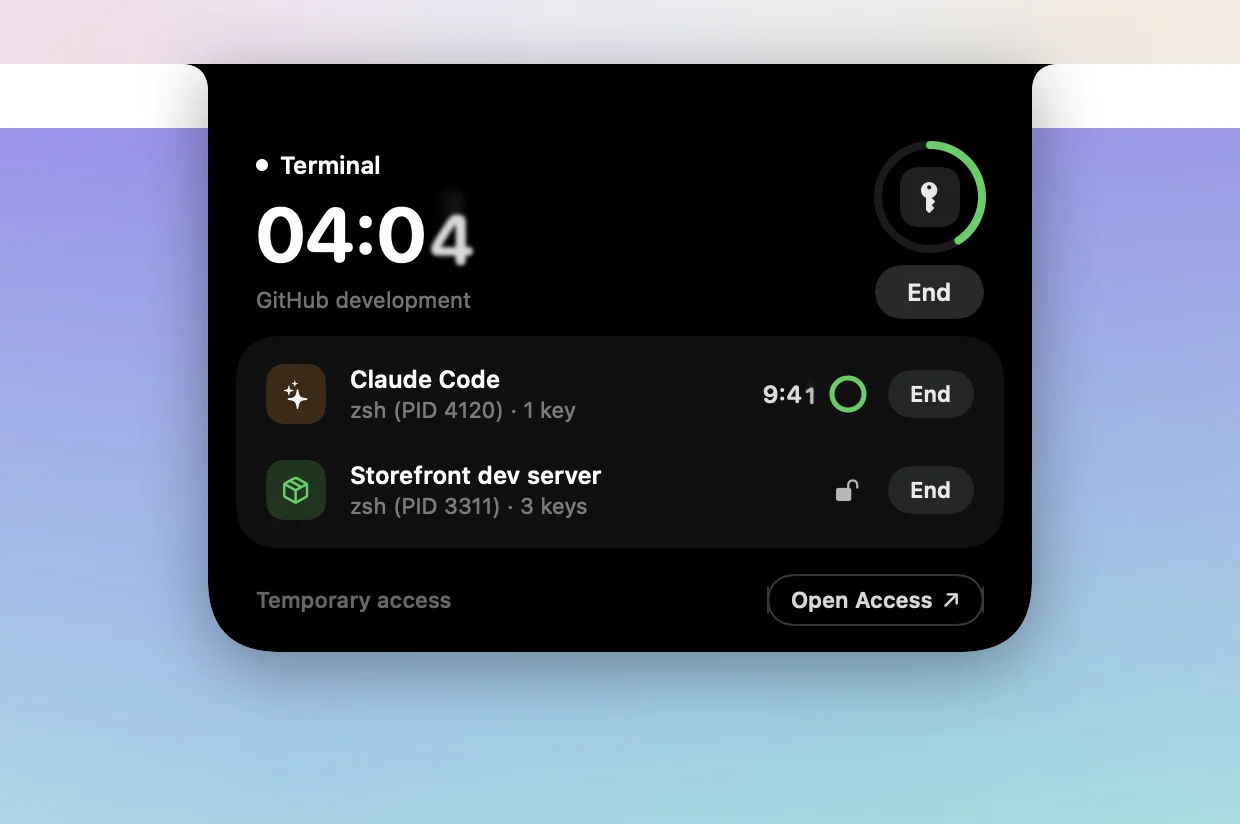
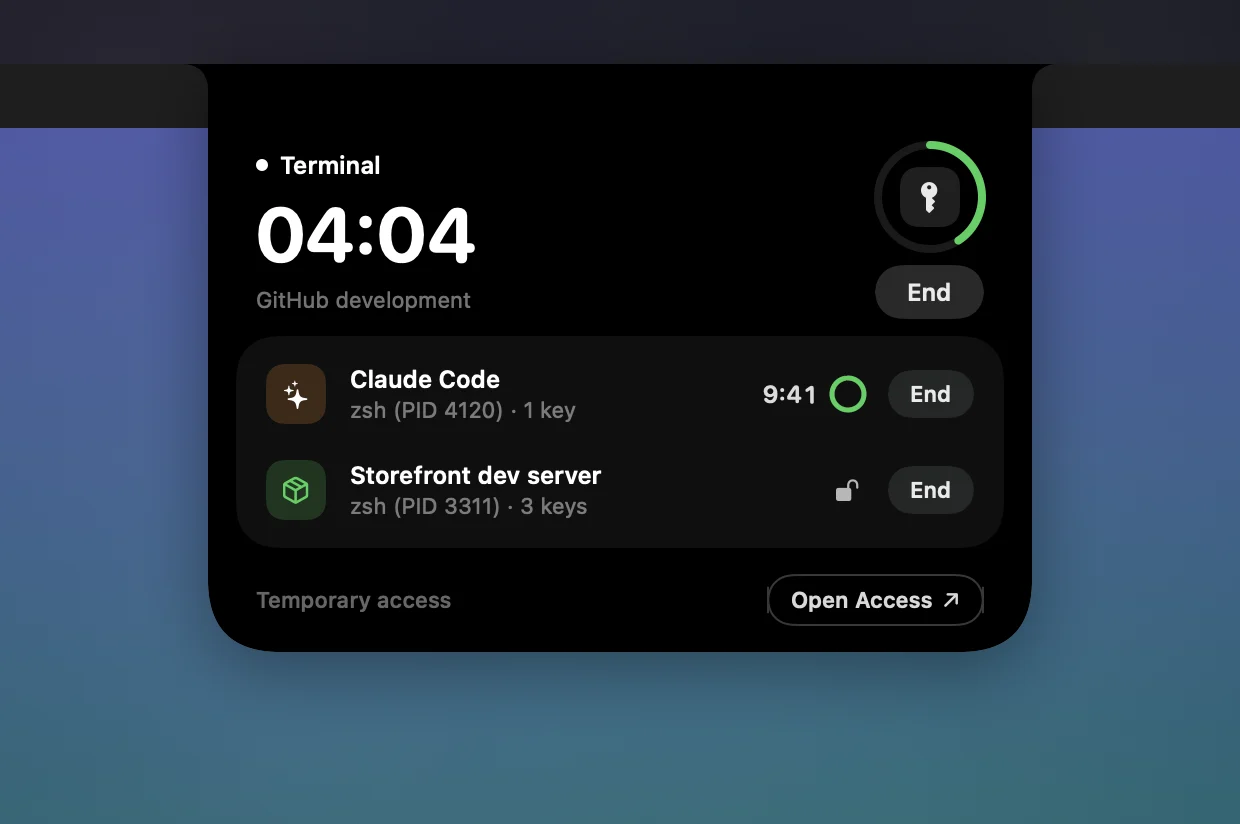
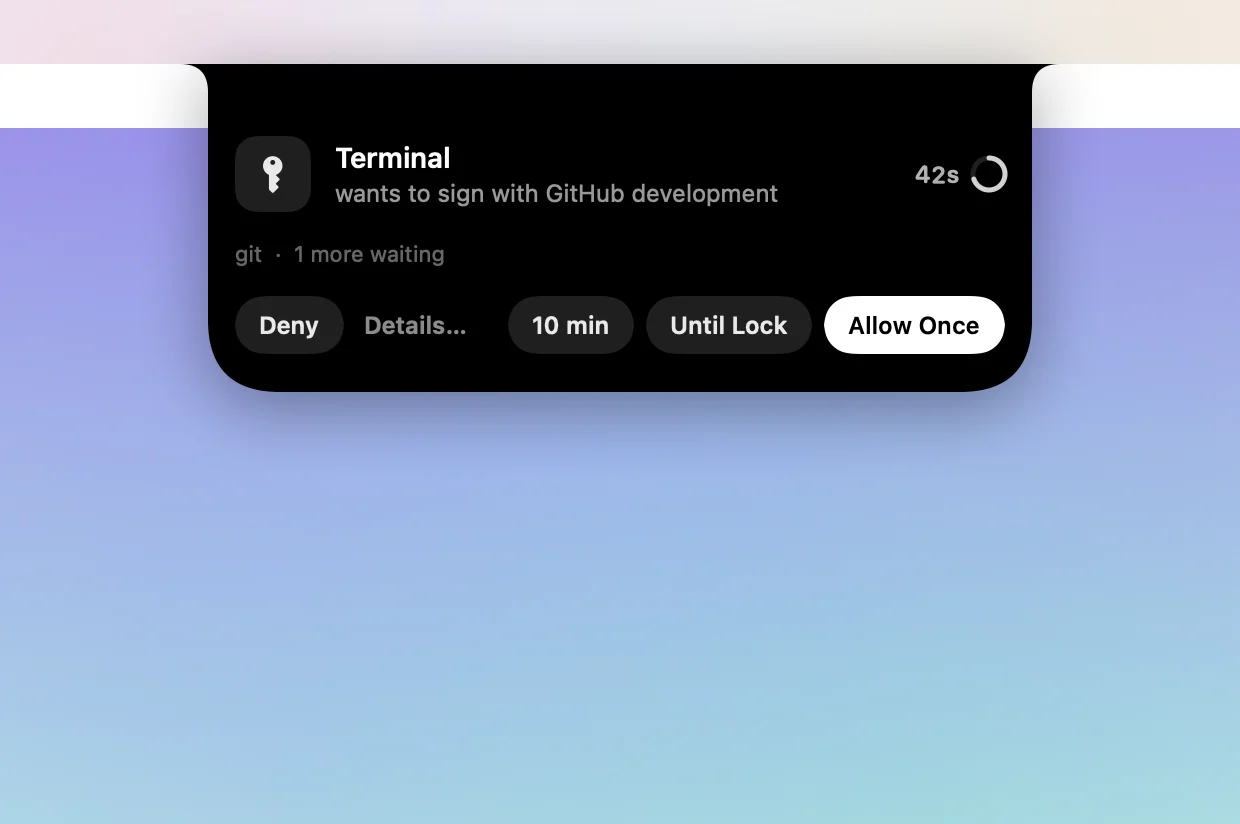
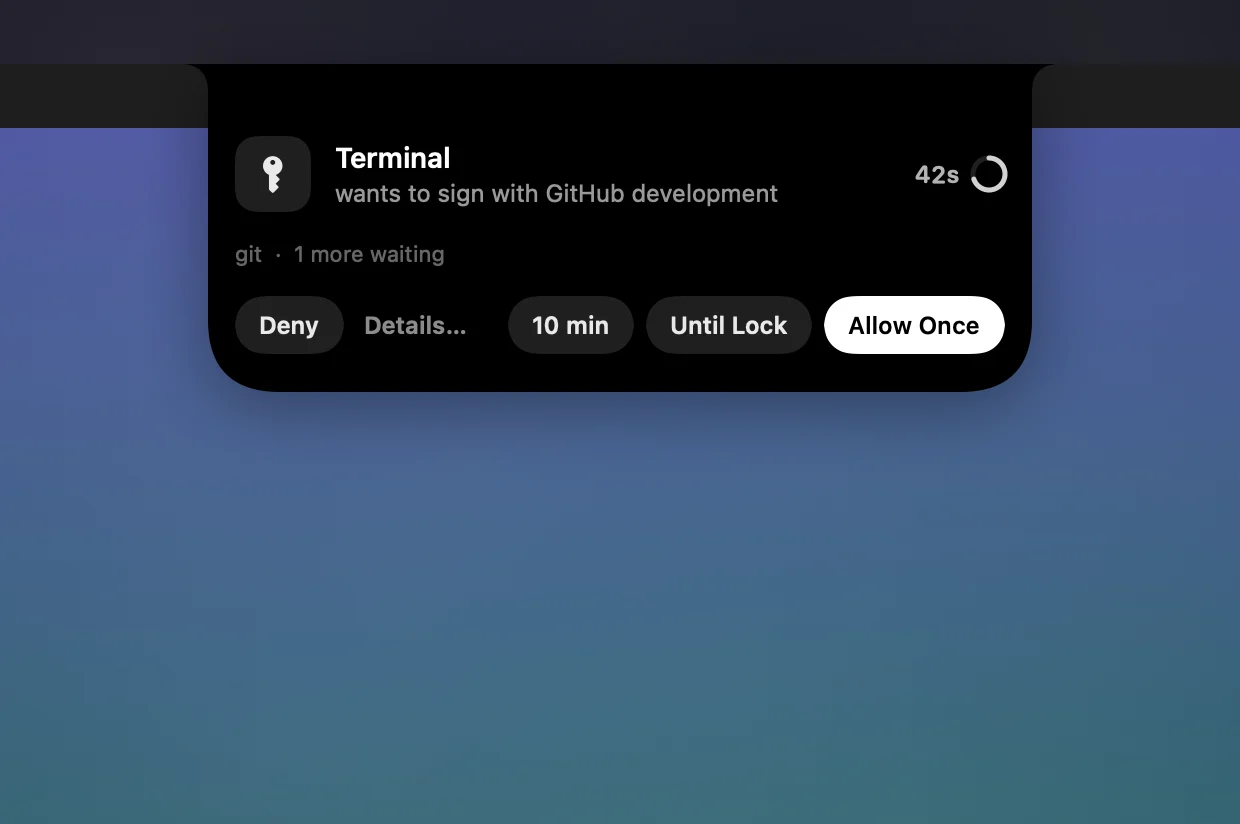
SSH signing and tools that use one key can ask for approval in the notch. The option is in Settings and starts on for Macs with a notch. Tools with several keys use the approval window. Touch ID or your password is still required.
Fixes
Start it with its saved tw run command or alias; a tool started another way doesn't get the key. Check that the variable name matches what the tool reads.
That is expected. Temporary access belongs to the launcher process that asked, so a new terminal window needs its own approval.
The next launch uses the new value. Restart programs that are already running to give them the new key.
The request was denied, it timed out, or the vault locked. Run the command again and approve.
Local API keys are included in free personal use. Work use requires a license.